Change styles via CSS
Change UI component styles using CSS.
Overview
Updating the CSS allows you to change the UI of the components to meet your needs. This section guides you through an example of updating the look of buttons. Note that the process can update any HTML tag from within SuperTokens components.
Before you start
Global style changes
First, open the website at /auth. The Sign-in widget should show up. Use the browser console to find out the class name that you’d like to overwrite.
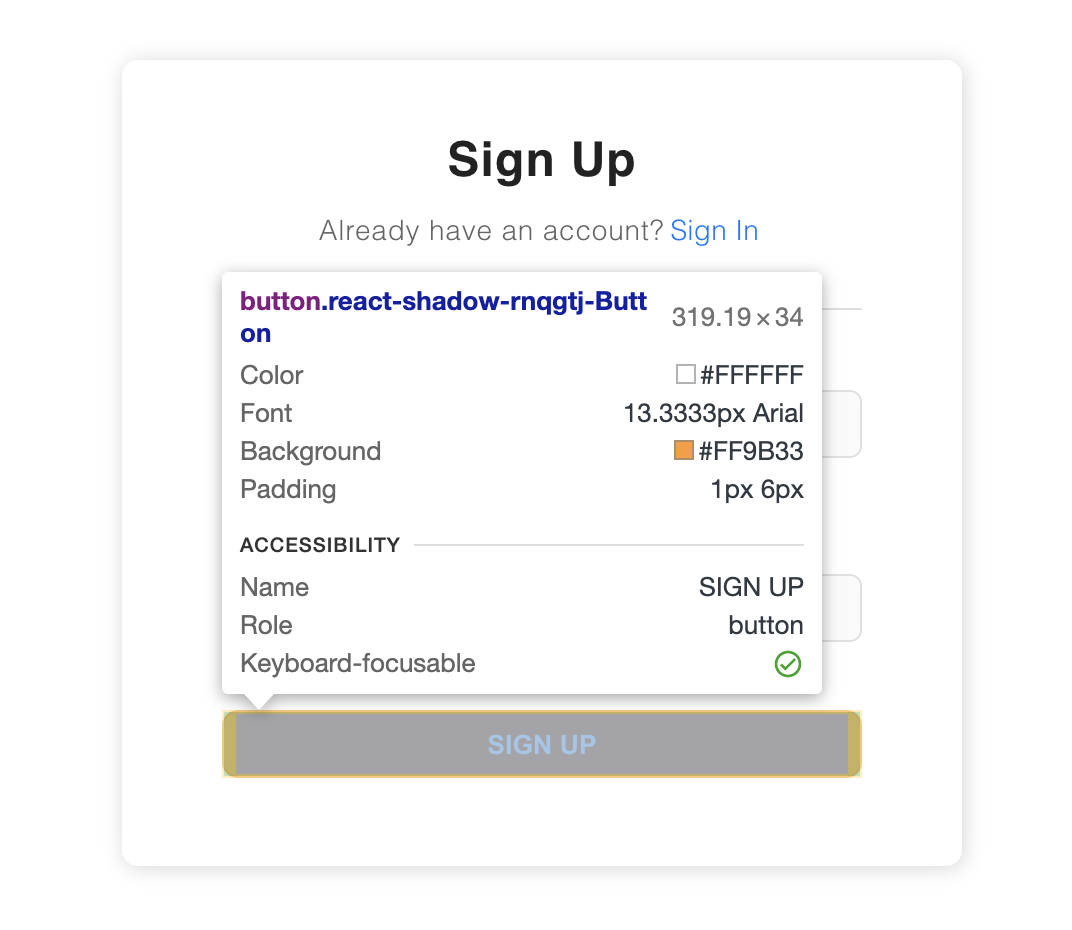
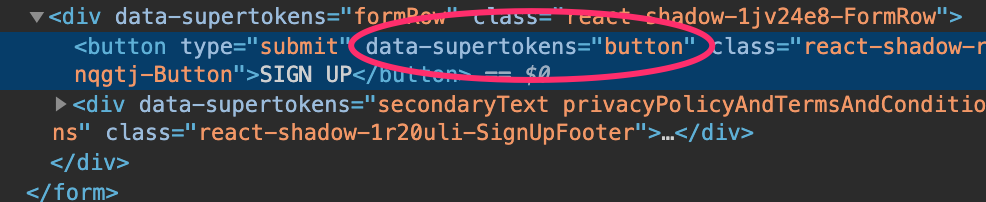
Each stylable component contains data-supertokens attributes (in this example data-supertokens="button").
Let’s customize elements with the button attribute. The syntax for styling is plain CSS.
import SuperTokens from "supertokens-auth-react";

SuperTokens.init({
  appInfo: {
    apiDomain: "...",
    appName: "...",
    websiteDomain: "...",
  },
  style: `
        [data-supertokens~=button] {
            background-color: #252571;
            border: 0px;
            width: 30%;
            margin: 0 auto;
        }
    `,
  recipeList: [
    /* ... */
  ],
});
// this goes in the auth route config of your frontend app (once the pre-built UI script has been loaded)
supertokensUIInit({
appInfo: {
apiDomain: "...",
appName: "...",
websiteDomain: "...",
},
style: `
[data-supertokens~=button] {
background-color: #252571;
border: 0px;
width: 30%;
margin: 0 auto;
}
`,
recipeList: [
/* ... */
],
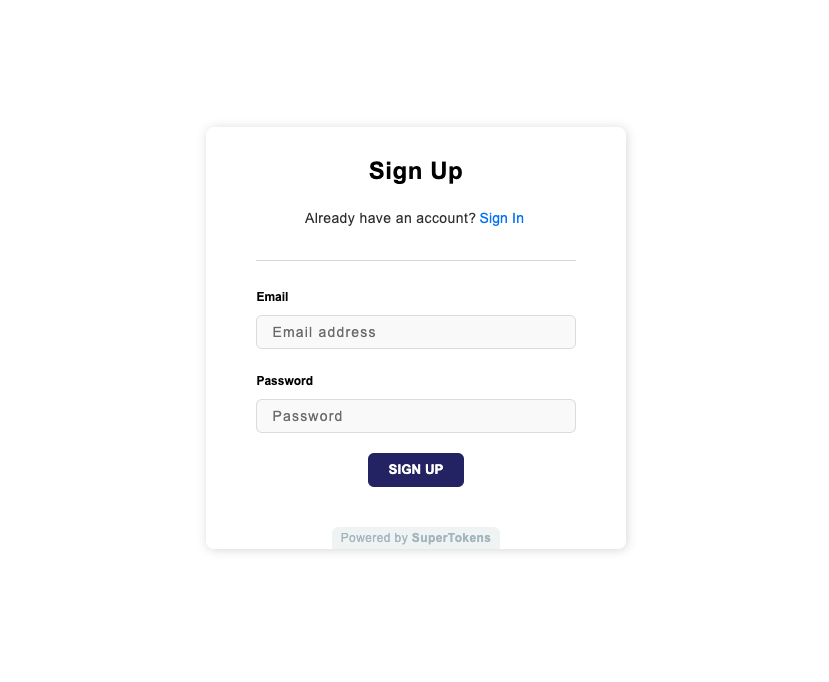
});The above results in:
Changing fonts
By default, SuperTokens uses the Arial font. The best way to override this is to add a font-family styling to the container component in the recipe configuration.
import SuperTokens from "supertokens-auth-react";

SuperTokens.init({
  appInfo: {
    apiDomain: "...",
    appName: "...",
    websiteDomain: "...",
  },
  style: `
        [data-supertokens~=container] {
            font-family: cursive;
        }
    `,
  recipeList: [
    /* ... */
  ],
});
// this goes in the auth route config of your frontend app (once the pre-built UI script has been loaded)
supertokensUIInit({
appInfo: {
apiDomain: "...",
appName: "...",
websiteDomain: "...",
},
style: `
[data-supertokens~=container] {
font-family: cursive;
}
`,
recipeList: [
/* ... */
],
});Using media queries
You may want to have different CSS for different viewports. This can happen via media queries like this:
import SuperTokens from "supertokens-auth-react";

SuperTokens.init({
  appInfo: {
    apiDomain: "...",
    appName: "...",
    websiteDomain: "...",
  },
  style: `
        [data-supertokens~=button] {
            background-color: #252571;
            border: 0px;
            width: 30%;
            margin: 0 auto;
        }

        @media (max-width: 440px) {
            [data-supertokens~=button] {
                width: 90%;
            }
        }
    `,
  recipeList: [
    /* ... */
  ],
});
// this goes in the auth route config of your frontend app (once the pre-built UI script has been loaded)
supertokensUIInit({
appInfo: {
apiDomain: "...",
appName: "...",
websiteDomain: "...",
},
style: `
[data-supertokens~=button] {
background-color: #252571;
border: 0px;
width: 30%;
margin: 0 auto;
}
@media (max-width: 440px) {
[data-supertokens~=button] {
width: 90%;
}
}
`,
recipeList: [
/* ... */
],
});Customize the sign up and sign in forms
These are the screens shown when the user tries to log in or sign up for the application.
import SuperTokens from "supertokens-auth-react";

SuperTokens.init({
  appInfo: {
    apiDomain: "...",
    appName: "...",
    websiteDomain: "...",
  },
  style: `[data-supertokens~=authPage] {
        ...
    }`,
  recipeList: [
    /* ... */
  ],
});
// this goes in the auth route config of your frontend app (once the pre-built UI script has been loaded)
supertokensUIInit({
appInfo: {
apiDomain: "...",
appName: "...",
websiteDomain: "...",
},
style: `[data-supertokens~=authPage] {
...
}`,
recipeList: [
/* ... */
],
});Customize the password reset forms
Send password reset email form
This form appears when the user clicks on “forgot password” in the sign in form.
import SuperTokens from "supertokens-auth-react";
import EmailPassword from "supertokens-auth-react/recipe/emailpassword";
import Session from "supertokens-auth-react/recipe/session";

SuperTokens.init({
  appInfo: {
    apiDomain: "...",
    appName: "...",
    websiteDomain: "...",
  },
  recipeList: [
    EmailPassword.init({
      resetPasswordUsingTokenFeature: {
        enterEmailForm: {
          style: ` ... `,
        },
      },
    }),
    Session.init(),
  ],
});
// this goes in the auth route config of your frontend app (once the pre-built UI script has been loaded)
supertokensUIInit({
appInfo: {
apiDomain: "...",
appName: "...",
websiteDomain: "...",
},
recipeList: [
supertokensUIEmailPassword.init({
resetPasswordUsingTokenFeature: {
enterEmailForm: {
style: ` ... `,
},
},
}),
supertokensUISession.init(),
],
});Submit new password form
This screen appears when the user clicks the password reset link on their email - to enter their new password
import SuperTokens from "supertokens-auth-react";
import EmailPassword from "supertokens-auth-react/recipe/emailpassword";
import Session from "supertokens-auth-react/recipe/session";

SuperTokens.init({
  appInfo: {
    apiDomain: "...",
    appName: "...",
    websiteDomain: "...",
  },
  recipeList: [
    EmailPassword.init({
      resetPasswordUsingTokenFeature: {
        submitNewPasswordForm: {
          style: ` ... `,
        },
      },
    }),
    Session.init(),
  ],
});
// this goes in the auth route config of your frontend app (once the pre-built UI script has been loaded)
supertokensUIInit({
appInfo: {
apiDomain: "...",
appName: "...",
websiteDomain: "...",
},
recipeList: [
supertokensUIEmailPassword.init({
resetPasswordUsingTokenFeature: {
submitNewPasswordForm: {
style: ` ... `,
},
},
}),
supertokensUISession.init(),
],
});