Automatic account linking
Enable automatic account linking for multiple login methods with SuperTokens, ensuring secure account management.
Overview
Automatic account linking is a feature that allows users to automatically sign in to their existing account using more than one login method. At a high level, SuperTokens can automatically link accounts for different login methods when:
- Their emails or phone numbers are the same.
- The new login method has a verified identifier when your callback returns
shouldRequireVerification: true.
SuperTokens applies account-takeover checks before linking. Your callback remains part of that security boundary, especially if you disable verification.
Before you start
Steps
1. Enable the recipe
You can enable this feature by providing the following callback implementation on the backend SDK:
import supertokens, { User, RecipeUserId } from "supertokens-node";
import AccountLinking from "supertokens-node/recipe/accountlinking";
import { AccountInfoWithRecipeId } from "supertokens-node/recipe/accountlinking/types";
import { SessionContainerInterface } from "supertokens-node/recipe/session/types";

// Prevent account linking if the user already exists in your database
function checkIfUserHasAssociatedInformation(
  accountInfo: AccountInfoWithRecipeId & { recipeUserId?: RecipeUserId },
  user: User | undefined,
): boolean {
  if (!accountInfo.recipeUserId || !user) return false;

  const userId = accountInfo.recipeUserId.getAsString();
  const hasAssociatedInformation = false;

  return hasAssociatedInformation;
}

supertokens.init({
  supertokens: {
    connectionURI: "...",
    apiKey: "...",
  },
  appInfo: {
    apiDomain: "...",
    appName: "...",
    websiteDomain: "...",
  },
  recipeList: [
    AccountLinking.init({
      shouldDoAutomaticAccountLinking: async (
        newAccountInfo: AccountInfoWithRecipeId & { recipeUserId?: RecipeUserId },
        user: User | undefined,
        session: SessionContainerInterface | undefined,
        tenantId: string,
        userContext: any,
      ) => {
        if (
          session !== undefined &&
          (user === undefined || session.getUserId() !== user.id || session.getTenantId() !== tenantId)
        ) {
          return {
            shouldAutomaticallyLink: false,
          };
        }

        // This step is required if you are saving user information in your own database.
        const hasAssociatedInformation = checkIfUserHasAssociatedInformation(newAccountInfo, user);
        if (hasAssociatedInformation) {
          return {
            shouldAutomaticallyLink: false,
          };
        }
        return {
          shouldAutomaticallyLink: true,
          shouldRequireVerification: true,
        };
      },
    }),
  ],
});
from supertokens_python import init, InputAppInfo, SupertokensConfig
from supertokens_python.recipe import accountlinking
from supertokens_python.types import User
from supertokens_python.recipe.session.interfaces import SessionContainer
from supertokens_python.recipe.accountlinking.types import AccountInfoWithRecipeIdAndUserId, ShouldNotAutomaticallyLink, ShouldAutomaticallyLink
from typing import Dict, Any, Optional, Union
# Prevent account linking if the user already exists in your database
async def check_if_user_has_associated_information(account_info: AccountInfoWithRecipeIdAndUserId, user: Optional[User]) -> bool:
if not account_info.recipe_user_id or not user:
return False
_user_id = account_info.recipe_user_id.get_as_string()
# Add your own implementation here
has_associated_information = False
return has_associated_information
async def should_do_automatic_account_linking(
new_account_info: AccountInfoWithRecipeIdAndUserId,
user: Optional[User],
session: Optional[SessionContainer],
tenant_id: str,
user_context: Dict[str, Any]
) -> Union[ShouldNotAutomaticallyLink, ShouldAutomaticallyLink]:
if session is not None and (
user is None
or session.get_user_id() != user.id
or session.get_tenant_id() != tenant_id
):
return ShouldNotAutomaticallyLink()
has_associated_information = await check_if_user_has_associated_information(new_account_info, user)
# This step is required if you are saving user information in your own database.
if has_associated_information:
return ShouldNotAutomaticallyLink()
return ShouldAutomaticallyLink(should_require_verification=True)
init(
app_info=InputAppInfo(
app_name="...",
api_domain="...",
website_domain="...",
),
supertokens_config=SupertokensConfig(
connection_uri="...",
),
framework="fastapi",
recipe_list=[
accountlinking.init(should_do_automatic_account_linking=should_do_automatic_account_linking)
],
)Input
| Argument | Type | Description |
|---|---|---|
newAccountInfo |
AccountInfoWithRecipeId & { recipeUserId?: RecipeUserId } |
Contains information about the user whose account is going to link or become a primary user. Includes email, social login info, phone number, WebAuthn credential IDs, and login method (emailpassword, thirdparty, passwordless, or webauthn). May contain recipeUserId during account linking. When newAccountInfo.recipeUserId !== undefined && user !== undefined, check whether that recipe user ID has associated data in your application database to prevent data loss. |
user |
User | undefined |
If not undefined, indicates newAccountInfo user links to this user. If undefined, newAccountInfo user becomes a primary user. |
session |
SessionContainerInterface | undefined |
Session object of the user who is linking. undefined for first factor login. Defined if user completed first factor and calls sign up/in API again (MFA or social login linking). |
tenantId |
string |
ID of the tenant the user is signing in or signing up to. Account matching and linking are scoped to this tenant. |
userContext |
any |
User-defined context object. |
Output
| Argument | Type | Description |
|---|---|---|
shouldAutomaticallyLink |
boolean |
If true, newAccountInfo links or becomes primary user during API call (subject to security checks). If false, no account linking operation occurs. |
shouldRequireVerification |
boolean |
If true, account linking only happens after the new login method’s matching identifier is verified. Keep this true unless your backend has independently verified ownership of that identifier; client-provided values are not ownership evidence. |
You can use the input of the function to dynamically decide if you want to do account linking for a particular user and / or login method or not.
Do not use a client-provided email, phone number, provider user ID, or WebAuthn credential ID to authorize linking.
Derive identifiers from the authenticated provider, WebAuthn ceremony, or backend user record. If session is present,
only authorize a session-driven link when session.getUserId() equals user.id and session.getTenantId() equals
tenantId. Returning false preserves both existing users; conflict statuses never transfer a login method between
primary users.
References
Automatic account linking scenarios
During sign up
If there exists another account with the same email or phone number within the current tenant, the new account links to the existing account if:
- The existing account is a primary user
- If
shouldRequireVerificationistrue, the new account needs creation via a method that has the email as verified (for example via passwordless or google login). If the new method doesn’t inherently verify the email (like in email password login), the accounts link post email verification. - Your implementation for
shouldDoAutomaticAccountLinkingreturnstruefor theshouldAutomaticallyLinkboolean.
During sign in
If the current user is not already linked and if there exists another user with the same email or phone number within the current tenant, the accounts link if:
- The user signing into is not a primary user, and the other user with the same email / phone number is a primary user
- If
shouldRequireVerificationistrue, the current account (that’s signing into) has its email as verified. - Your implementation for
shouldDoAutomaticAccountLinkingreturnstruefor theshouldAutomaticallyLinkboolean.
After email verification
If the current user whose email got verified is not a primary user, and there exists another primary user in the same tenant with the same email, then the two accounts link if:
- Your implementation for
shouldDoAutomaticAccountLinkingreturnstruefor theshouldAutomaticallyLinkboolean.
During the password reset flow
If there already exists a user with the same email in a non email password recipe (social login for example), and the user is doing a password reset flow, a new email password user creates and links to the existing account if:
- The non email password user is a primary user.
- Your implementation for
shouldDoAutomaticAccountLinkingreturnstruefor theshouldAutomaticallyLinkboolean.
User data changes during account linking
When two accounts link, the primary user ID of the non primary user changes.
For example, if User A has a primary user ID p1 and user B, which is a non primary user, has a user ID of p2, and they link, then the primary user ID of User B changes to p1.
This has an effect that if the user logs in with login method from User B, the session.getUserId() returns p1.
If there was any older data associated with User B (against user ID p2), in your database, that data essentially becomes “lost”.
To prevent this scenario, you should:
- Make sure that you return
falseforshouldAutomaticallyLinkboolean in theshouldDoAutomaticAccountLinkingfunction implementation if there exists arecipeUserIdin thenewAccountInfoobject, and if you have some information related to that user ID in your own database. This appears in the code snippet above. - If you do not want to return
falsein this case, and want the accounts to link, then make sure to implement theonAccountLinkedcallback:
import supertokens, { User, RecipeUserId } from "supertokens-node";
import AccountLinking from "supertokens-node/recipe/accountlinking";
import { AccountInfoWithRecipeId, RecipeLevelUser } from "supertokens-node/recipe/accountlinking/types";
import { SessionContainerInterface } from "supertokens-node/recipe/session/types";

supertokens.init({
  supertokens: {
    connectionURI: "...",
    apiKey: "...",
  },
  appInfo: {
    apiDomain: "...",
    appName: "...",
    websiteDomain: "...",
  },
  recipeList: [
    AccountLinking.init({
      shouldDoAutomaticAccountLinking: async (
        newAccountInfo: AccountInfoWithRecipeId & { recipeUserId?: RecipeUserId },
        user: User | undefined,
        session: SessionContainerInterface | undefined,
        tenantId: string,
        userContext: any,
      ) => {
        return {
          shouldAutomaticallyLink: true,
          shouldRequireVerification: true,
        };
      },
      onAccountLinked: async (user: User, newAccountInfo: RecipeLevelUser, userContext: any) => {
        let olderUserId = newAccountInfo.recipeUserId.getAsString();
        let newUserId = user.id;

        // TODO: migrate data from olderUserId to newUserId in your database...
      },
    }),
  ],
});Error status codes
The following codes can appear in general errors shown by the pre-built UI. Released Node.js 24.0.3 uses these families:
| Recipe or operation | Codes |
|---|---|
| Password reset/recovery protection | ERR_CODE_001 |
| Passwordless sign-in/up and session linking | ERR_CODE_002, ERR_CODE_003, ERR_CODE_017–ERR_CODE_019 |
| Third-party sign-in/up and session linking | ERR_CODE_004–ERR_CODE_006, ERR_CODE_020–ERR_CODE_024 |
| Email-password sign-in/up and session linking | ERR_CODE_007–ERR_CODE_016 |
| WebAuthn sign-up and session linking | ERR_CODE_025–ERR_CODE_029 |
| WebAuthn sign-in and session linking | ERR_CODE_030–ERR_CODE_034 |
For session-linking families, the consecutive codes distinguish verification required, a recipe user already linked to another primary user, account information already associated with another primary user, and session-user account information already associated with another primary user. Do not parse the message text; handle the API status and show the reason as a support-safe error.
ERR_CODE_001
-
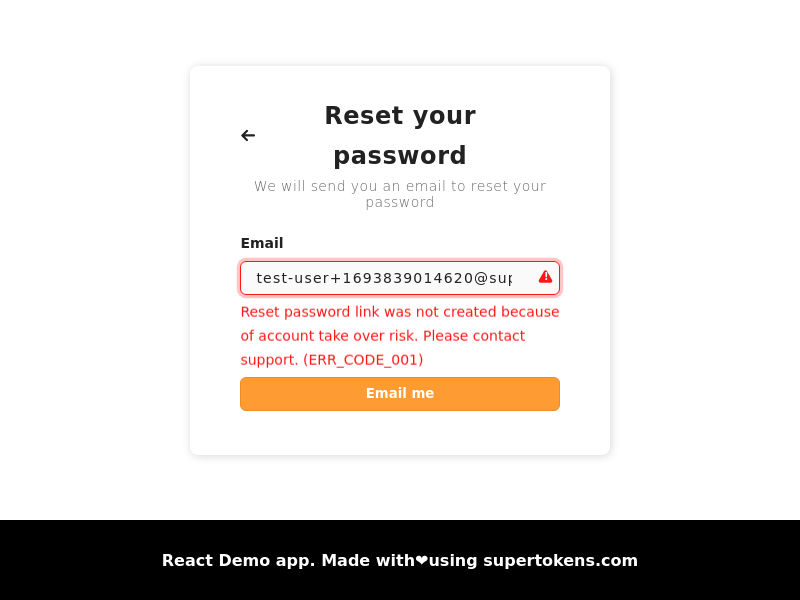
This can happen during creating a password reset code in the email password flow:
- API path and method:
/user/password/reset/token POST - Output JSON:
{ "status": "PASSWORD_RESET_NOT_ALLOWED", "reason": "Reset password link was not created because of account take over risk. Please contact support. (ERR_CODE_001)" }- The pre-built UI on the frontend displays this error in the following way:
- API path and method:
-
Below is the scenario for when this status returns:
A malicious user, User A, which is a primary user, has login methods with email e1 (social login) and email e1 (emailpassword login). If user A changes their emailpassword email to e2 (which is in unverified state), and the real user of e2 (the victim) tries to sign up via email password, they see a message saying that the email already exists. The victim may then try to do a password reset (thinking they had previously signed up). If this happens, and the victim resets the password (since they are the real owner of the email), then they can login to the account, and the attacker can spy on what the user is doing via their third party login method.
To prevent this scenario, enforcement ensures that the password link is only generated if the primary user has at least one login method that has the input email ID and verifies it, or if not, checks that the primary user has no other login method with a different email, or phone number. If these cases are not satisfied, then the system returns the error code ERR_CODE_001.
- To resolve this, you would have to manually verify the user’s identity and check that they own each of the emails / phone numbers associated with the primary user. Once verified, you can manually mark the email from the email password account as verified, and then ask them to go through the password reset flow once again. If they do not own each of the emails / phone numbers associated with the account, you can manually unlink the login methods which they do not own, and then ask them to go through the password reset flow once again. You can do these actions using the user management dashboard.
ERR_CODE_002
-
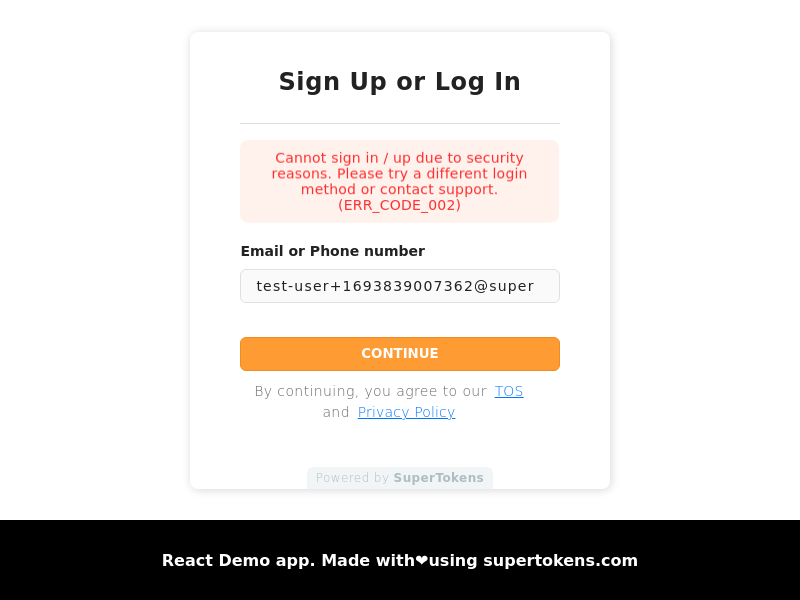
This can happen during the passwordless recipe’s create or consume code API (during sign up):
- API path and method:
/signinup/code POSTor/signinup/code/consume POST - Output JSON:
{ "status": "SIGN_IN_UP_NOT_ALLOWED", "reason": "Cannot sign in / up due to security reasons. Please try a different login method or contact support. (ERR_CODE_002)" }- The pre-built UI on the frontend displays this error in the following way:
- API path and method:
-
Below is an example scenario for when this status returns (one amongst many): A user is trying to sign up using passwordless login method with email
e1. There exists an email password login method withe1, which remains unverified (owned by an attacker). If this scenario occurs, and then the attacker initiates the email verification flow for the email password method, the real user might click on the verification email (since they signed up, they do not get suspicious), and then the attacker’s login method links to the passwordless login method. This way, the attacker gains access to the user’s account.To prevent this, sign up with passwordless login is not allowed in case there exists another account with the same email and remains unverified.
-
To resolve this issue, you should ask the user to try another login method (which already has their email), or then mark their email as verified in the other account that has the same email, before asking them to retry passwordless login. You can do these actions using the user management dashboard.
ERR_CODE_003
- This can happen during passwordless code consumption when sign-in is blocked to prevent unsafe account linking:
- API path and method:
/signinup/code/consume POST - Output status:
SIGN_IN_UP_NOT_ALLOWED
- API path and method:
- Ask the user to use another login method that is already associated with the account or contact support. Do not bypass the check based on client-provided account information.
ERR_CODE_004
-
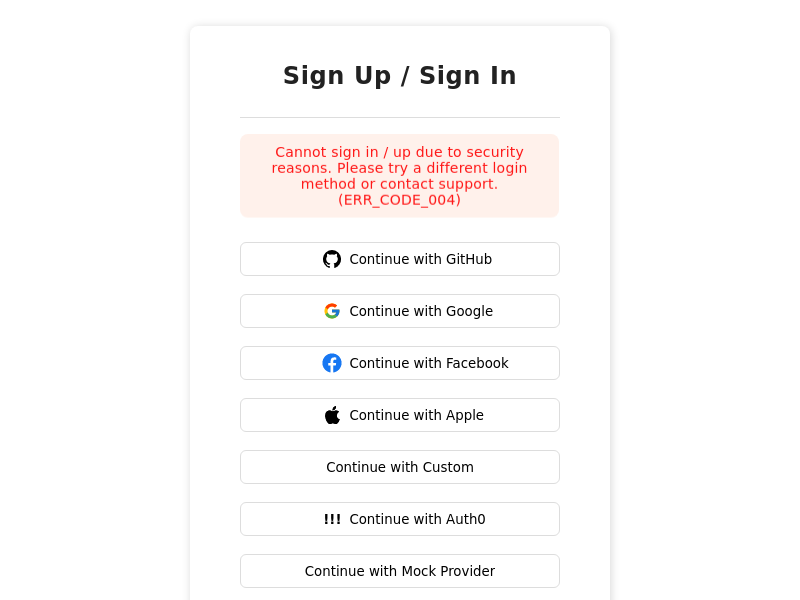
This can happen during the third party recipe’s
/signinupAPI (during sign in):- API path and method:
/signinup POST - Output JSON:
{ "status": "SIGN_IN_UP_NOT_ALLOWED", "reason": "Cannot sign in / up due to security reasons. Please try a different login method or contact support. (ERR_CODE_004)" }- The pre-built UI on the frontend displays this error in the following way:
- API path and method:
-
Below is an example scenario for when this status returns (one amongst many): There exists a
thirdpartyuser with emaile1, sign in with Google (owned by the victim, and the email is verified). There exists anotherthirdpartylogin method with email,e2(owned by an attacker), such as login with GitHub. The attacker then goes to their GitHub and changes their email toe1(which is in unverified state). The next time the attacker tries to login, via GitHub, they see this error code. Login is prevented, because if it wasn’t, then the attacker might send an email verification link toe1, and if the victim clicks on it, then the attacker’s account will link to the victim’s account. -
To resolve this issue, you can delete the login method that has the unverified email, or if manually mark the unverified account as verified (if you confirm the identity of its owner). You can do these actions using the user management dashboard.
ERR_CODE_005
-
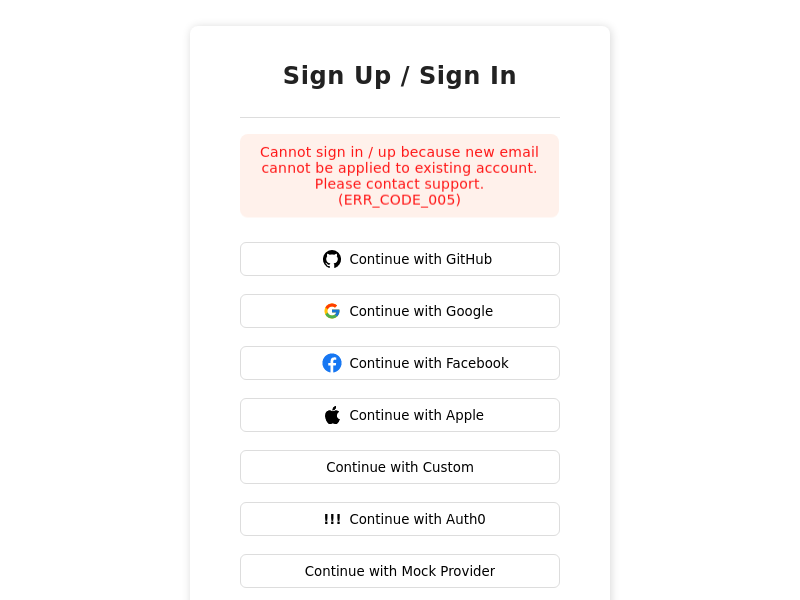
This can happen during the third party recipe’s
signinupAPI (during sign in):- API path and method:
/signinup POST - Output JSON:
{ "status": "SIGN_IN_UP_NOT_ALLOWED", "reason": "Cannot sign in / up because new email cannot be applied to existing account. Please contact support. (ERR_CODE_005)" }- The pre-built UI on the frontend displays this error in the following way:
- API path and method:
-
Below is as example scenario for when this status returns (one amongst many): There exists a primary, third party user with email
e1, sign in with Google. There exists another email password user with emaile2, which is a primary user. If the user changes their email on Google toe2, and then try logging in via Google, they see this error code. This occurs because if it wasn’t, then it would result in two primary users having the same email, which violates one of the account linking rules. -
To resolve this issue, you can make one of the primary users as non primary (use the unlink button against the login method on the user management dashboard). Once the user is not a primary user, you can ask the user to re-login with that method, and it should auto link that account with the existing primary user.
ERR_CODE_006
-
This can happen during the third party recipe’s
signinupAPI (during sign up):- API path and method:
/signinup POST - Output JSON:
{ "status": "SIGN_IN_UP_NOT_ALLOWED", "reason": "Cannot sign in / up because new email cannot be applied to existing account. Please contact support. (ERR_CODE_006)" }- The pre-built UI on the frontend displays this error in the following way:
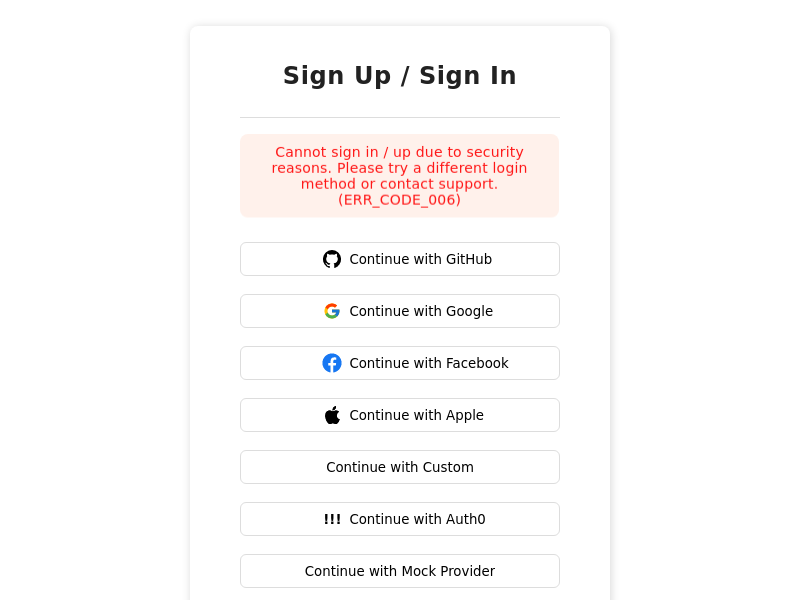
- API path and method:
-
Below is as example scenario for when this status returns (one amongst many): A user is trying to sign up using third party login method with email
e1. There exists an email password login method withe1, which remains unverified (owned by an attacker). If the third party sign up is allowed, and then the attacker initiates the email verification flow for the email password method, the real user might click on the verification email (since they signed up, they do not get suspicious), and then the attacker’s login method links to the third party login method. This way, the attacker has access to the user’s account.To prevent this, sign up with third party login is not allowed in case there exists another account with the same email and remains unverified.
-
To resolve this issue, you should ask the user to try another login method (which already has their email), or then manually mark their email as verified in the other account that has the same email, before asking them to retry third party login. You can do these actions using the user management dashboard.
ERR_CODE_007
-
This can happen during the email password sign up API:
- API path and method:
/signup POST - Output JSON:
{ "status": "SIGN_UP_NOT_ALLOWED", "reason": "Cannot sign up due to security reasons. Please try logging in, use a different login method or contact support. (ERR_CODE_007)" }- The pre-built UI on the frontend displays this error in the following way:
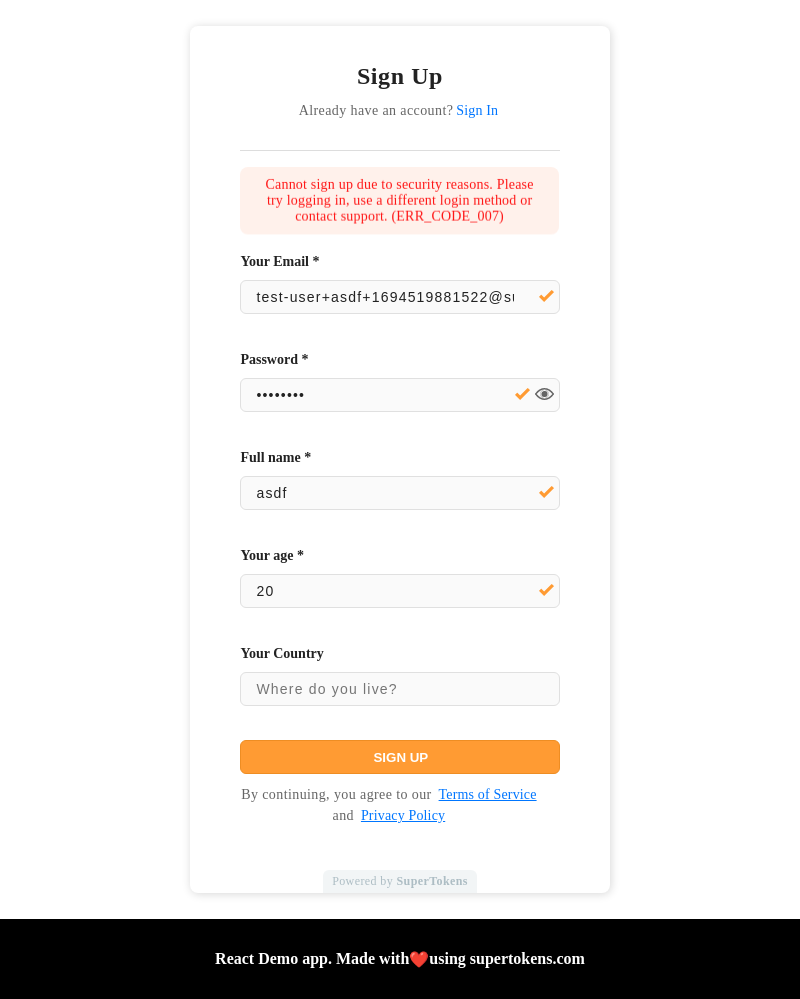
- API path and method:
-
Below is as example scenario for when this status returns (one amongst many): There exists a primary, social login account with email
e1, sign in with Google. If an attacker tries to sign up with email password with emaile1, the system sends an email verification email to the victim, and they may click it since they had previously signed up with Google. This links the attacker’s account to the victim’s account. -
To resolve this issue, you can ask the user to try and login, or go through the reset password flow.
ERR_CODE_008
-
This can happen during the email password sign in API:
- API path and method:
/signin POST - Output JSON:
{ "status": "SIGN_IN_NOT_ALLOWED", "reason": "Cannot sign in due to security reasons. Please try resetting your password, use a different login method or contact support. (ERR_CODE_008)" }- The pre-built UI on the frontend displays this error in the following way:
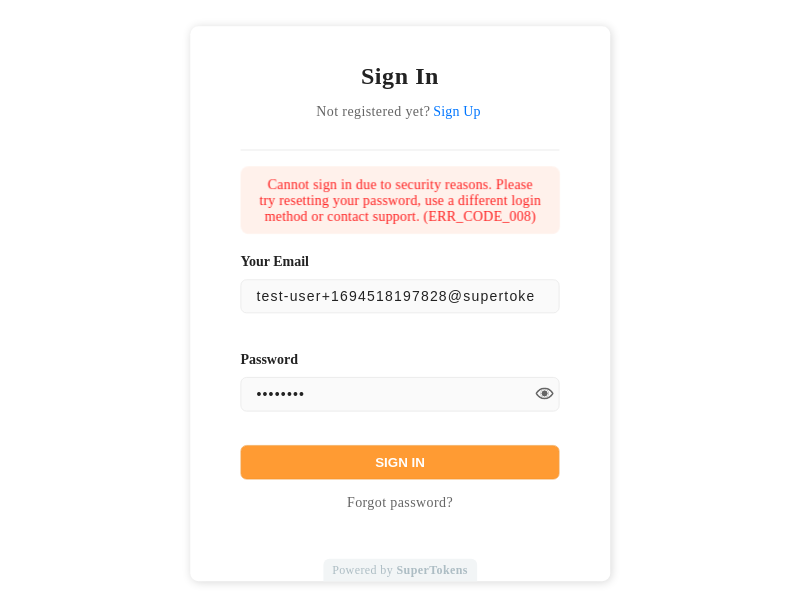
- API path and method:
-
Below is as example scenario for when this status returns (one amongst many): There exists a primary, social login account with email
e1, sign in with Google. There also exists an email password account (owned by the attacker) that remains unverified with the same emaile1(this is not a primary user). If the attacker tries to sign in with email password, they see this error. This occurs because if it wasn’t, then the attacker might send an email verification email on sign in, and the actual user may click on it (since they had previously signed up). Upon verifying that account, the system links the attacker’s account to the victim’s account. -
To resolve this issue, you can ask the user to try the reset password flow.
ERR_CODE_014
-
This can happen when adding a password to an existing session user:
- API Path is
/signup POST. - Output JSON:
{
  "status": "SIGN_UP_NOT_ALLOWED",
  "reason": "Cannot sign up due to security reasons. Please contact support. (ERR_CODE_014)"
}
- API Path is
-
An example scenario of when in the following scenario:
-
Let’s say that the app configures to not have automatic account linking during the first factor.
- A user creates an email password account with email
e1, verifies it, and links social login account to it with emaile2.
- A user creates an email password account with email
-
The user logs out, and then creates a social login account with email
e1. Then, they receive a request to add a password to this account. Since an email password account withe1already exists, SuperTokens tries and links that to this new account, but fails, since the email password account withe1is already a primary user. -
To resolve this, it is recommended to manually link the
e1social login account with thee1email password account. Alternatively, enable automatic account linking for first factor to prevent the above scenario.
ERR_CODE_015
-
This can happen when adding a password to an existing session user:
- API Path is
/signup POST. - Output JSON:
{
  "status": "SIGN_UP_NOT_ALLOWED",
  "reason": "Cannot sign up due to security reasons. Please contact support. (ERR_CODE_015)"
}
- API Path is
-
An example scenario of when in the following scenario:
- A user creates a social login account with email
e1which becomes a primary user. - The user logs out, and creates another social login account with email
e2, which also becomes a primary user.
- A user creates a social login account with email
-
The user receives a request to add a password for the new account with an option to also specify an email with it (this is strange, but theoretically possible). They enter the email
e1for the email password account. -
This causes this type of error since the linking of the new social login and email account fails since there already exists another primary user with the same (
e1) email. -
To resolve this, it is recommended not allowing users to specify an email when asking them to add a password for their account.
ERR_CODE_016
-
This can happen when adding a password to an existing session user:
- API Path is
/signup POST. - Output JSON:
{
  "status": "SIGN_UP_NOT_ALLOWED",
  "reason": "Cannot sign up due to security reasons. Please contact support. (ERR_CODE_016)"
}
- API Path is
-
An example scenario of when in the following scenario:
- Let’s say that the app is configured to not have automatic account linking during the first factor.
- A user signs up with a social login account using Google with email
e1, and they add another social account, with Facebook, with the same email. - The user logs out and creates another social login account with email
e1(say GitHub), and then tries and adds a password to this account with emaile1. Here, SuperTokens tries and makes the GitHub login a primary user, but fails, since the emaile1is already a primary user (with Google login).
-
To resolve this, it is recommended that you manually link the
e1GitHub social login account with thee1Google social login account. Or you can enable automatic account linking for first factor and this way, the above scenario will not happen.
ERR_CODE_020
- This can happen during association of a third party login to an existing session’s account.
- API Path is
/signinup POST. - Output JSON:
{
  "status": "SIGN_IN_UP_NOT_ALLOWED",
  "reason": "Cannot sign in / up due to security reasons. Please contact support. (ERR_CODE_020)"
}
- API Path is
- This can happen when the third party account that is trying to link to the session’s account is not verified. It could happen when you are trying to associate a social login account to a user, but that social account’s email is not verified (and if the email of that account is not the same as the current session’s account’s email).
- Only allow users to link provider accounts whose identifiers the provider marks as verified. Return
shouldRequireVerification: falseonly if your backend has independently verified ownership; client input is not sufficient evidence.
ERR_CODE_021
- This can happen during association of a third party login to an existing session’s account.
- API Path is
/signinup POST. - Output JSON:
{
  "status": "SIGN_IN_UP_NOT_ALLOWED",
  "reason": "Cannot sign in / up due to security reasons. Please contact support. (ERR_CODE_021)"
}
- API Path is
- This can happen when the third party account that is trying to link to the session’s account is already linked with another primary user.
ERR_CODE_022
- This can happen during association of a third party login to an existing session’s account.
- API Path is
/signinup POST. - Output JSON:
{
  "status": "SIGN_IN_UP_NOT_ALLOWED",
  "reason": "Cannot sign in / up due to security reasons. Please contact support. (ERR_CODE_022)"
}
- API Path is
- This can happen when the third party account that is trying to link to the session’s account has the same email as another primary user.
ERR_CODE_023
- This can happen during association of a third party login to an existing session’s account.
- API Path is
/signinup POST. - Output JSON:
{
  "status": "SIGN_IN_UP_NOT_ALLOWED",
  "reason": "Cannot sign in / up due to security reasons. Please contact support. (ERR_CODE_023)"
}
- API Path is
- To link the third party user with the session user, we need to make sure that the session user is a primary user. However, that can fail if there exists another primary user with the same email as the session user, and in this case, this error returns to the frontend.
ERR_CODE_024
- This happens during third party sign in, when the user is trying to sign in with a non-primary user, and the third party provider does not verify their email, and their exists a primary user with the same email. This can also happen the other way around wherein the user is trying to sign in with the primary user (unverified email), and there exists a non-primary user with the same email.
- API Path is
/signinup POST. - Output JSON:
{
  "status": "SIGN_IN_UP_NOT_ALLOWED",
  "reason": "Cannot sign in / up due to security reasons. Please contact support. (ERR_CODE_024)"
}
- API Path is
- You can resolve this by deleting the (non primary) user that has the same email ID, or by manually marking the email of the user as verified for the login method that they are trying to sign in with.
Changing the error message on the frontend
If you want to display a different message to the user, or use a different status code, you can change them on the frontend via the language translation feature.